Claude Code Quick Start Guide
Prerequisite: Install Node.js
Claude Code requires Node.js. Please refer to the Node.js Installation Guide to install and verify.
Easier Way: Auto Config
If you don't want to install manually and configure each file, use the Auto Config Tool.
macOS / Linux:
curl -fsSL https://relay.upthos.com/auto-config/install.sh | bash -s -- --tools claude
Windows PowerShell:
irm https://relay.upthos.com/auto-config/install.ps1 | iex --% --tools claude
1. Configure Claude Code
Step 1: Install Claude Code
Open your terminal and run:
curl -fsSL https://claude.ai/install.sh | sh
The installer handles all dependencies automatically — Node.js and npm are not required ahead of time.
On macOS / Linux, add sudo if you encounter permission issues:
sudo curl -fsSL https://claude.ai/install.sh | sh
Verify the installation:
claude --version
Step 2: Create an API Key
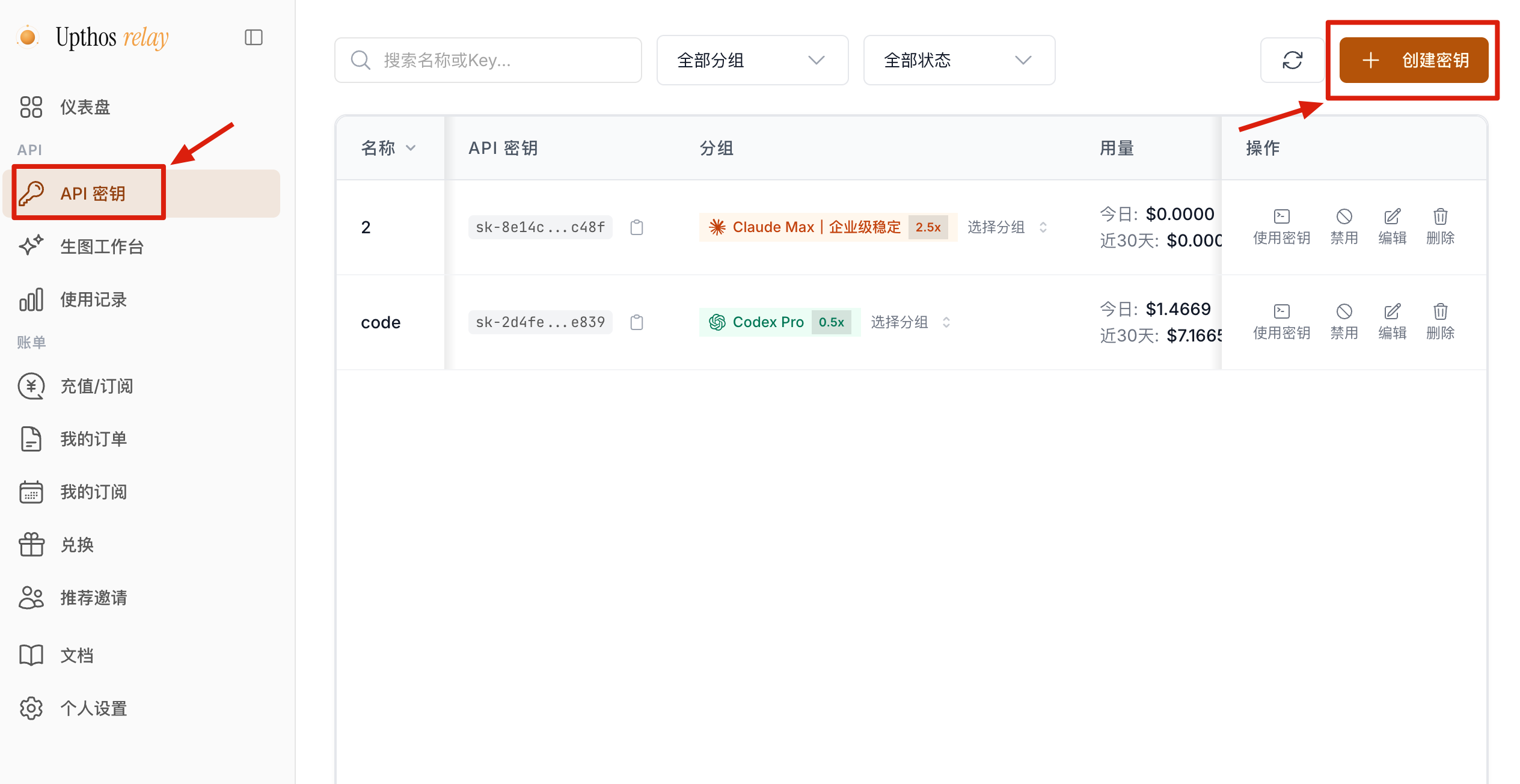
Log in to the Upthos Relay Console, go to API Keys, and click Create Key.
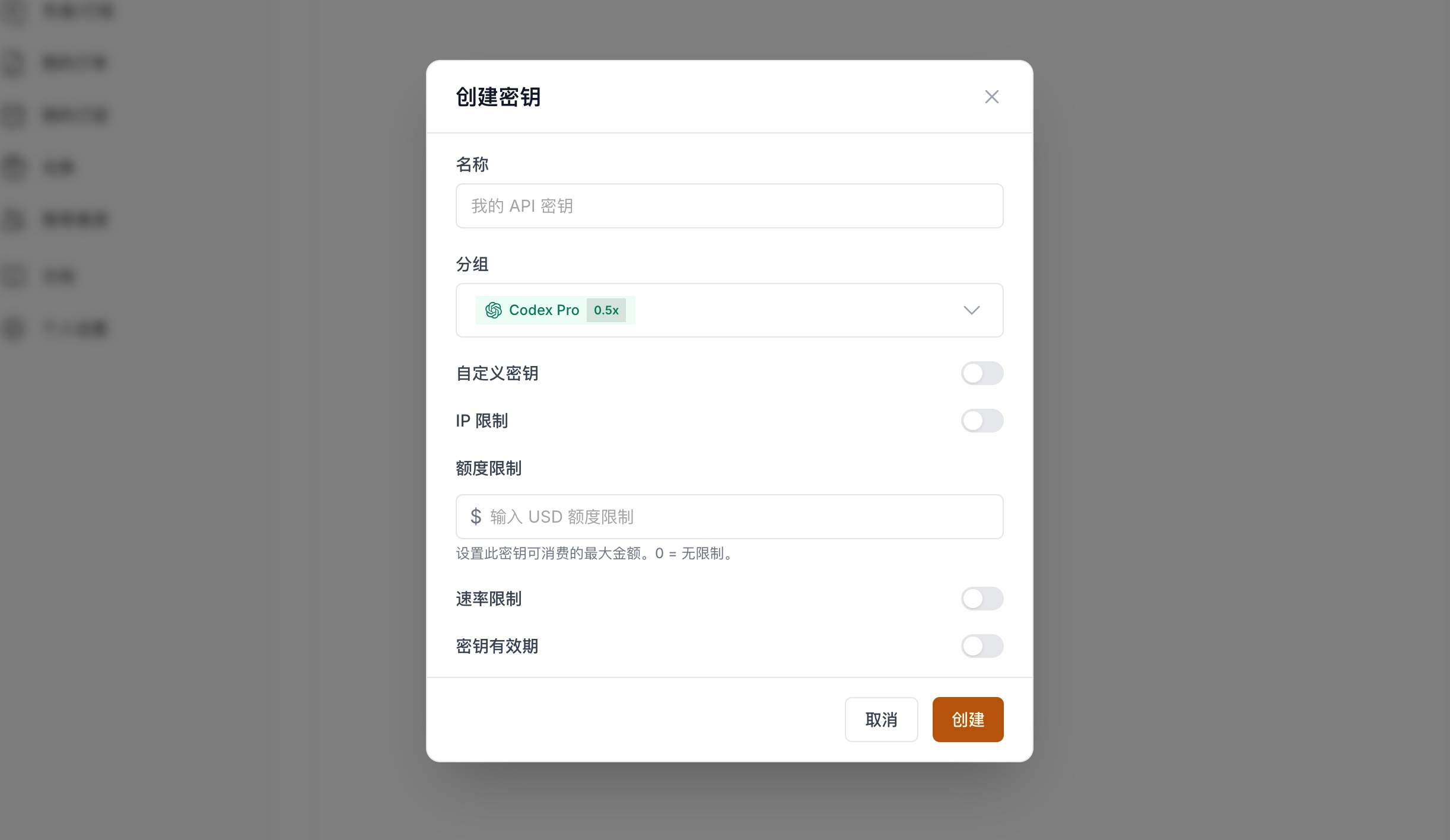
Fill in the key name, select a group (model and rate), and optionally configure IP restrictions, quota limits, rate limits, and expiration.
Beginners: just use the default settings.
Security Note: Your API Key is equivalent to account credentials. Keep it safe and never commit it to a code repository or share publicly.
Step 3: Import Key to Claude Code
We recommend using CC Switch for one-click configuration, or you can set environment variables manually.
Option 1: CC Switch (Recommended)
CC Switch is a Claude Code provider switcher with a graphical UI for managing multiple API provider configurations. See the repo for installation instructions.
Download and install from the CC Switch Releases page.
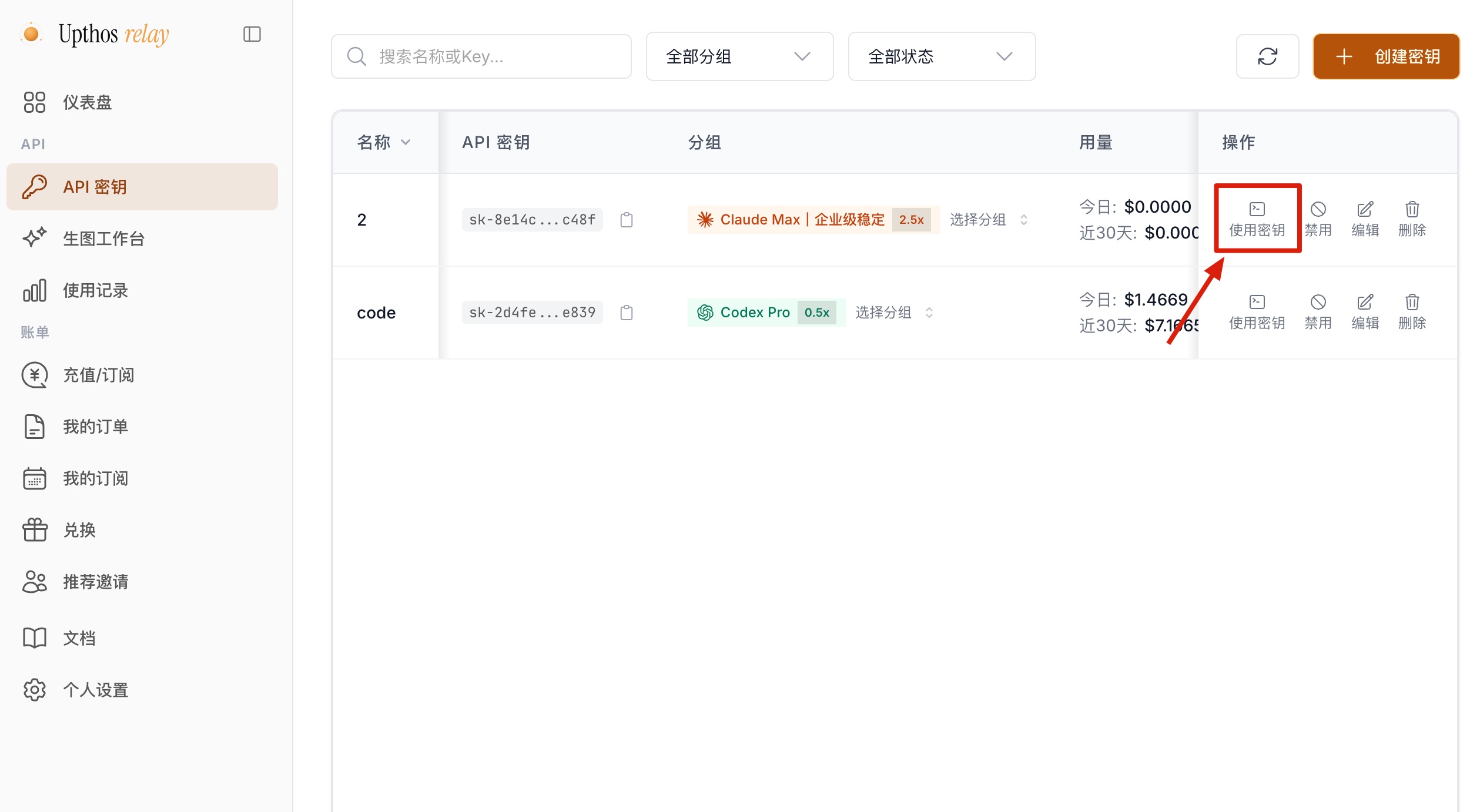
Click Use Key:
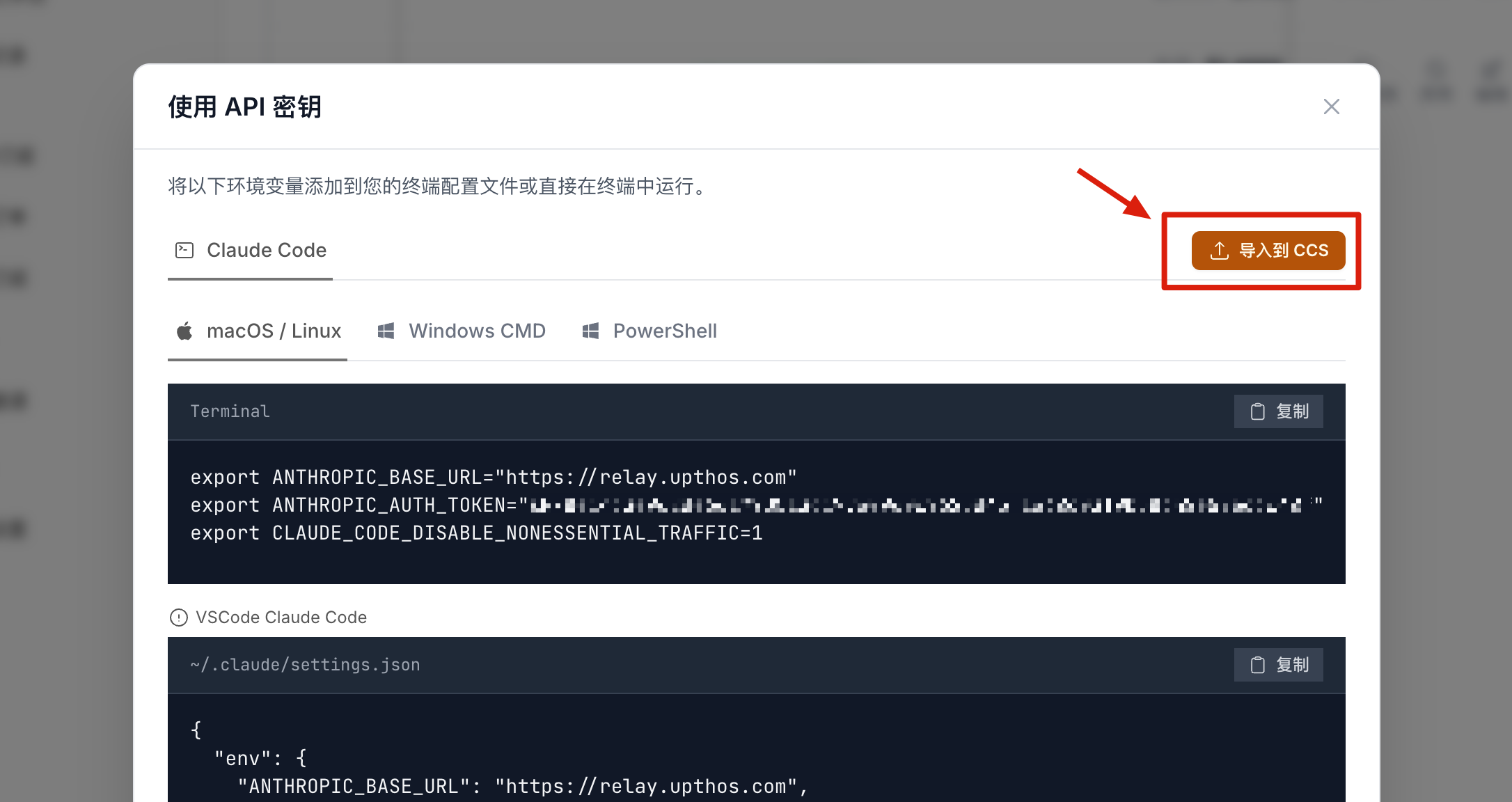
Click Import to CCS:
In the CCS dialog, click Confirm Import:
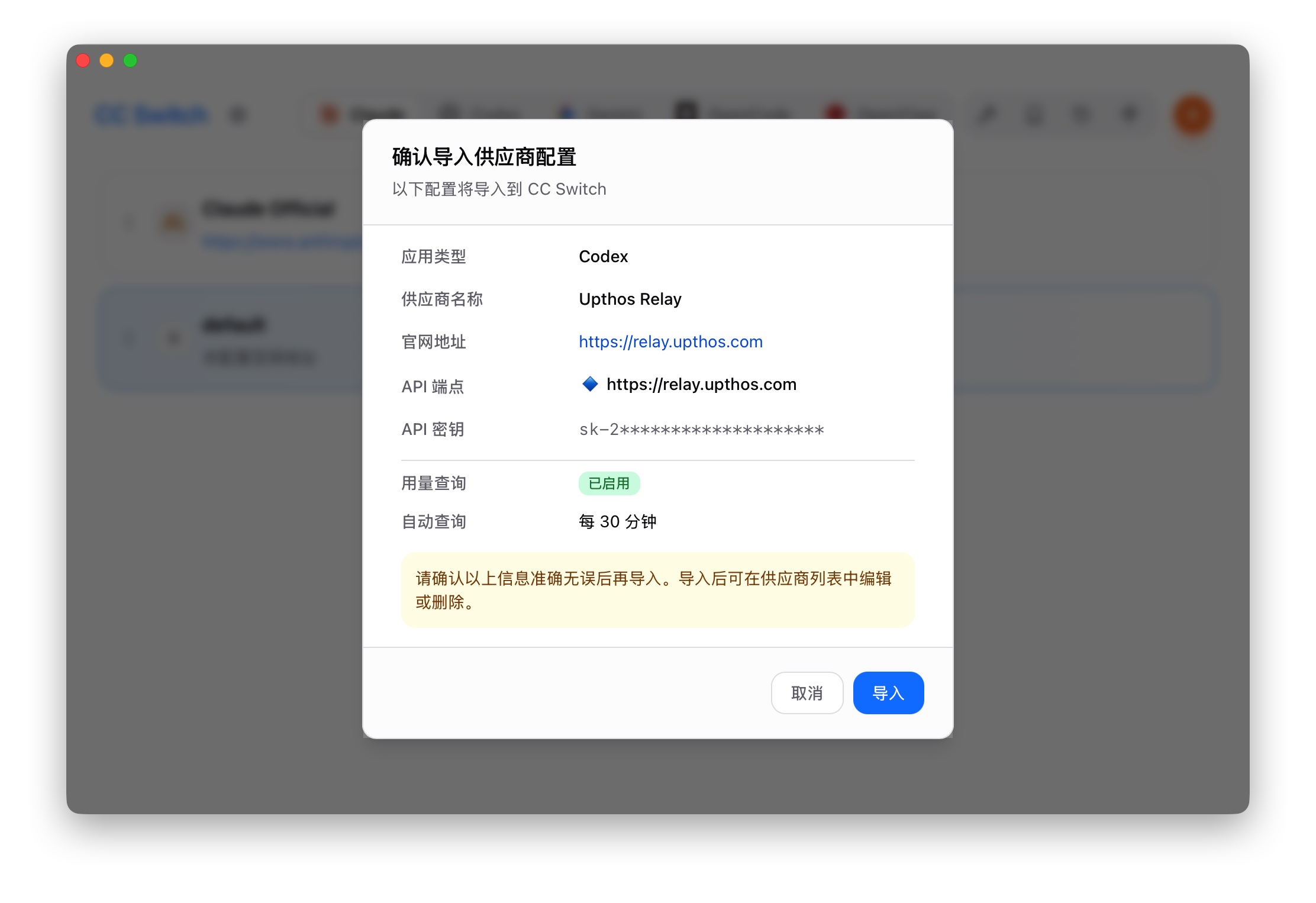
After import, click Enable.
Option 2: Manual Environment Variables
Click the Copy button next to your key to get the API Key.
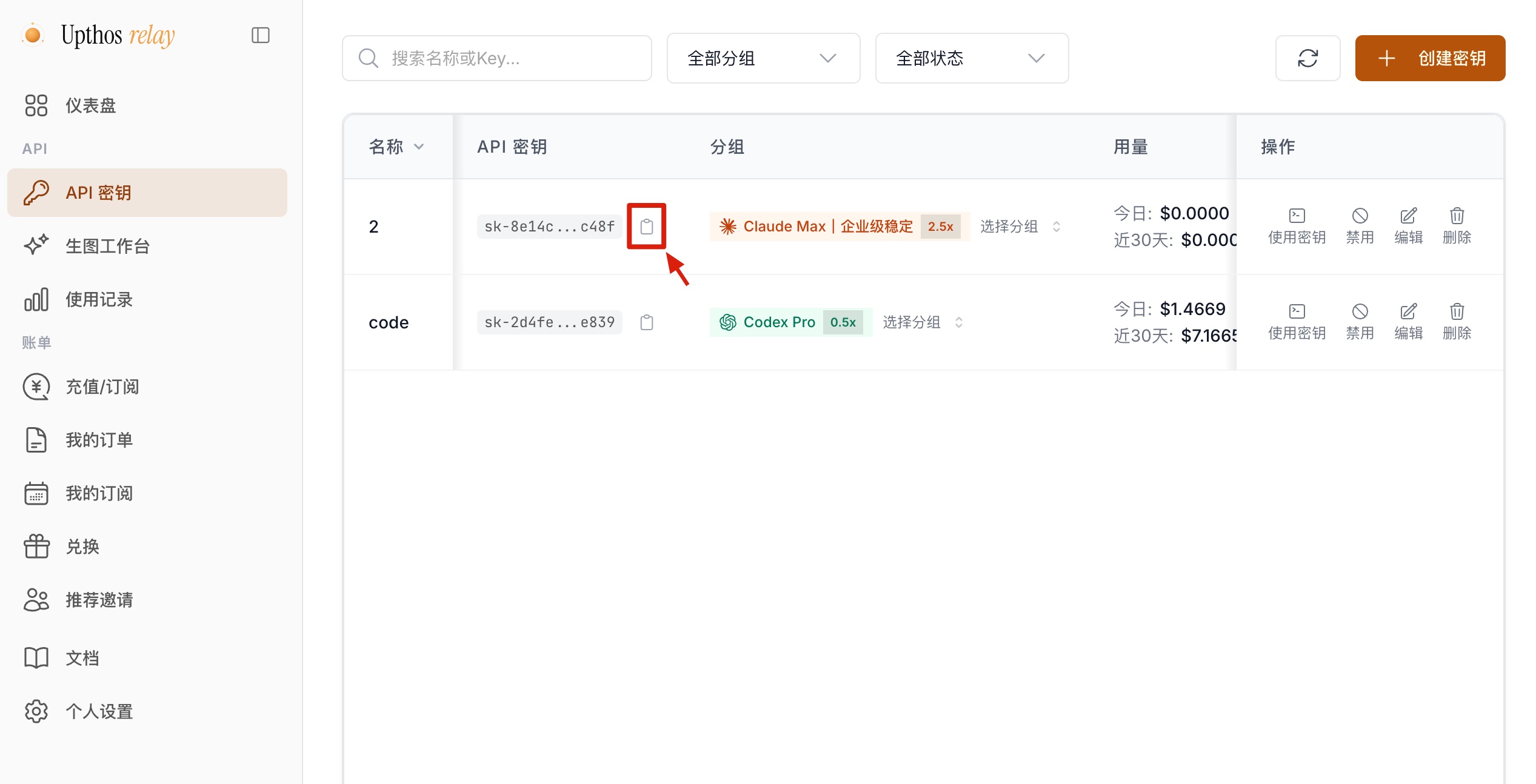
Set these two environment variables:
| Variable | Value |
|---|---|
ANTHROPIC_BASE_URL |
https://relay.upthos.com |
ANTHROPIC_AUTH_TOKEN |
Your API Key |
Temporary (current terminal session only)
Windows (PowerShell):
$env:ANTHROPIC_BASE_URL = "https://relay.upthos.com"
$env:ANTHROPIC_AUTH_TOKEN = "YOUR_API_KEY"
macOS / Linux:
export ANTHROPIC_BASE_URL="https://relay.upthos.com"
export ANTHROPIC_AUTH_TOKEN="YOUR_API_KEY"
Permanent (persists after restart)
Windows (PowerShell):
[System.Environment]::SetEnvironmentVariable("ANTHROPIC_BASE_URL", "https://relay.upthos.com", [System.EnvironmentVariableTarget]::User)
[System.Environment]::SetEnvironmentVariable("ANTHROPIC_AUTH_TOKEN", "YOUR_API_KEY", [System.EnvironmentVariableTarget]::User)
macOS (Zsh):
echo 'export ANTHROPIC_BASE_URL="https://relay.upthos.com"' >> ~/.zshrc
echo 'export ANTHROPIC_AUTH_TOKEN="YOUR_API_KEY"' >> ~/.zshrc
source ~/.zshrc
Linux (Bash):
echo 'export ANTHROPIC_BASE_URL="https://relay.upthos.com"' >> ~/.bashrc
echo 'export ANTHROPIC_AUTH_TOKEN="YOUR_API_KEY"' >> ~/.bashrc
source ~/.bashrc
Step 4: Start Using
Navigate to any project directory and run:
claude
Claude Code will automatically analyze the code in the current directory and provide intelligent coding assistance.
FAQ
Q: Install script fails or shows permission denied?
A: On macOS / Linux, prefix the command with sudo. On Windows, run PowerShell as Administrator.
Q: claude --version says command not found?
A: The installer places claude in ~/.local/bin by default (macOS / Linux). Make sure that path is in your system $PATH, then restart your terminal or run source ~/.zshrc / source ~/.bashrc to apply the change.
Q: Connection fails or returns 401 error?
A: Verify that ANTHROPIC_BASE_URL is set to https://relay.upthos.com and that your ANTHROPIC_AUTH_TOKEN is correct and not expired.
Q: How to switch between different models or rates?
A: Create keys with different groups in the Upthos Relay Console, and use CC Switch to quickly switch between configurations.